Build a complete topical authority map — visually, in minutes.
The Topical Map Editor turns a seed keyword like Golden Retriever into a structured graph of pages, sections, hubs, and FAQs — complete with URL architecture, internal linking plan, and entity-enriched node data ready for export. Switch to Concept mode to map the entity relationships that drive semantic authority.
- Topical mode — visual hierarchy, URL architecture, hub and section classification
- Concept mode — entity relationship graph with labelled semantic connections
- Four layouts — Force, Horizontal Tree, Vertical Tree, and Radial
- Export-ready — PNG, SVG, CSV, and JSON in one click
What is a topical map?
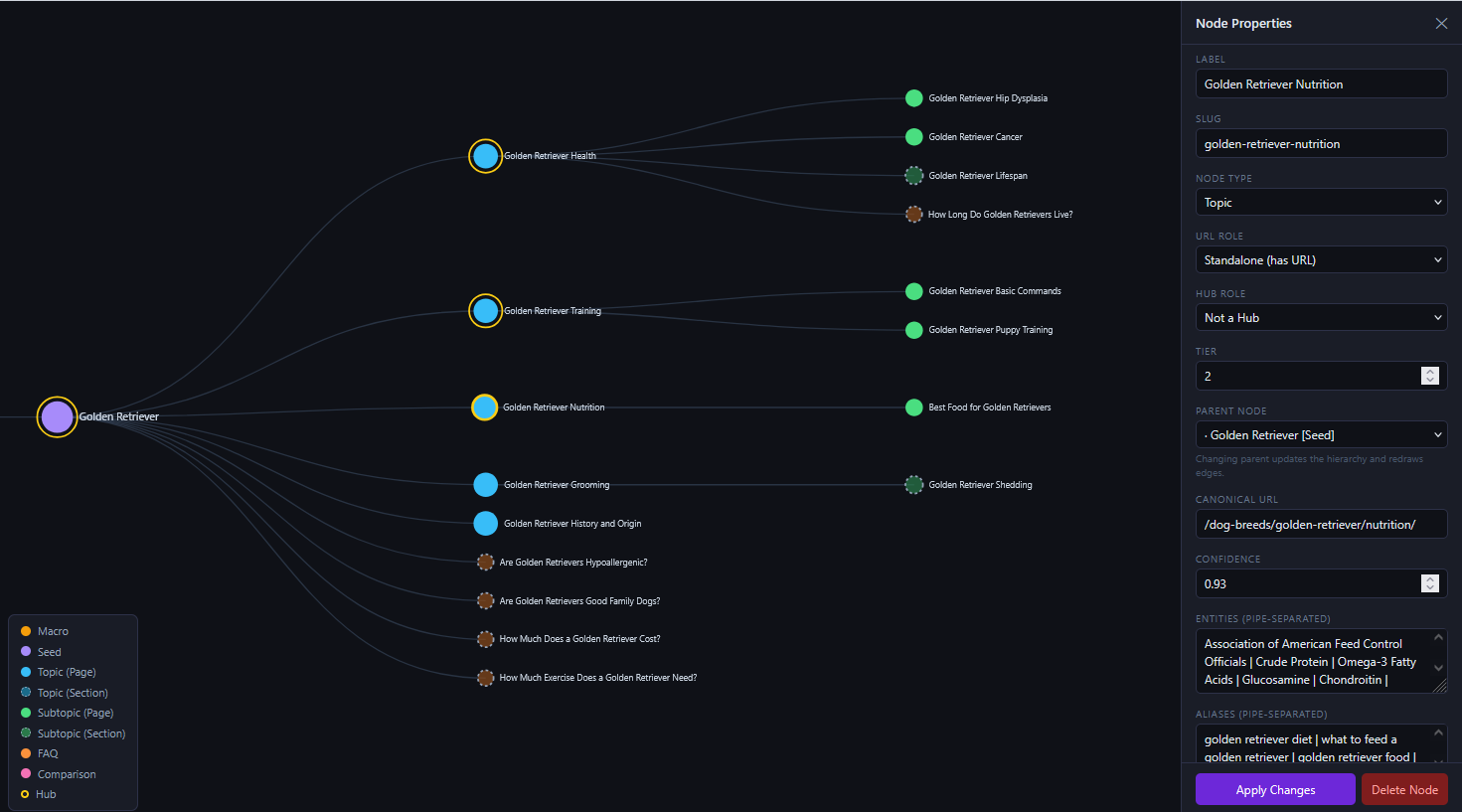
Topical map and concept map — plan architecture and semantic depth
The editor operates in two modes. Switch at any time without clearing the graph. Both modes export to the same JSON format and work with the same four layouts.
Topical Mode
Build your site architecture. Every node is a page, section, FAQ, or hub. Every edge is an internal link. Every URL is planned.
- Six node types: Macro, Seed, Topic, Subtopic, FAQ, Comparison
- Standalone page vs Section Only vs Hub classification
- Canonical URL auto-generation from parent + slug
- Internal linking plan with anchor text and placement hints
- Hide Section-Only nodes to see pages-only view
- Gold ring indicator for Hub pages
- Dashed border for Section-only nodes
Concept Mode
Map the entities and semantic relationships your content needs to cover. Every edge carries a visible relationship label. Node size scales to fit the label inside the circle.
- Seven concept types: Core, Entity, Condition, Process, Attribute, Category, External
- 11 relationship types with color-coded edge labels
- Relationship labels rendered on every connecting line
- Top-down force layout with seed pinned at apex
- Nodes spaced to keep relationship labels readable
- Description and Group fields on every concept node
- Macro and Seed retain topical colors as structural anchors
Most content plans are a flat list of topics — not a structured authority system
A spreadsheet of keyword ideas tells you what to write about. A topical map tells you what the page is, where it lives in the hierarchy, what its URL should be, whether it is a hub or a section, and how it links to everything else . A concept map tells you which entities and relationships your content needs to cover.
The Problem
Content gets published without a clear hierarchy. Pages overlap, internal links are inconsistent, entity coverage is thin, and Google cannot determine which page is the authority on a subject.
The Consequence
Without a clear structure and entity depth, topical authority never fully consolidates. Rankings plateau even when content quality is high.
The Fix
Build the topical map first — plan every page, URL, hub, and link. Then build the concept map — ensure every important entity and relationship is covered somewhere in the content.
Not just a visual — a complete data model
Full Node Inventory
Every topic, subtopic, FAQ, comparison, hub, section, entity, and concept is a node with its own ID, label, slug, type, entity list, aliases, and confidence score.
URL Architecture Plan
Canonical URLs auto-generated from parent URLs and slugs. Section-only nodes get no URL. Standalone pages get their own. Hub pages get both. All visible in the graph immediately.
Linking and Relationship Plan
In topical mode every edge carries anchor text, placement hint, and required status. In concept mode every edge carries a visible relationship label and type — Is A, Causes, Requires, and eight more.
Everything a content architect needs in one editor
Four Graph Layouts
Switch between Force Graph (explore clusters and concept relationships), Horizontal Tree (review hierarchy and URLs), Vertical Tree (org-chart style, wide maps), and Radial Tree (present to clients) with one click.
Topical and Concept Modes
Switch between Topical mode (page architecture, URL planning) and Concept mode (entity relationships, semantic depth) without clearing the graph. Mode is auto-detected when loading JSON.
Page vs Section vs Hub Classification
Every topical node is classified as a Standalone page, Section (no URL), or Hub (navigation centre). Visualized through color, border style, and gold hub rings. Section-only nodes can be hidden with one click.
Concept Edge Labels
In concept mode every edge carries a visible relationship label rendered on the connecting line — is a type of, is prone to, requires, is screened by. 11 relationship types, each with its own color. Labels are spaced so they are always fully readable.
Inline Node Editor
Click any node to open the Properties panel. Edit label, slug, type, URL role, hub role, canonical URL, parent, confidence score, entities, aliases, description, and group — all without leaving the graph. Most edits update in place without redrawing.
Click-to-Zoom Connection Highlight
Clicking a node highlights that node and all its direct neighbours, dims everything else, and zooms the viewport to fit the selected neighbourhood. Closing the panel restores the previous zoom position exactly.
Add, Duplicate, Re-parent, Delete
Add child nodes with inferred types in topical mode or generic concept nodes in concept mode. Duplicate any node. Re-parent via dropdown. Delete with Delete. Changes are reflected immediately.
URL Auto-Generator
Type a label and the canonical URL auto-builds from parent URL + slug. Change the parent — URL updates. Set URL Role to Section — URL clears. Override any time. Available in topical mode and for Macro/Seed nodes in concept mode.
Live Search
Search across labels, slugs, URLs, descriptions, entities, and aliases in real time across both modes. Matching nodes highlighted, non-matching nodes dimmed. Press / to focus from anywhere.
Map Control Panel
A compact control panel in the top-right corner provides zoom in, zoom out, fit view, and directional pan buttons. Hold any button to repeat continuously. Works on touch screens.
Minimap Navigation
A live minimap shows the full graph at a glance with a viewport indicator. Click anywhere on the minimap to pan to that position. The selected node appears as a gold dot.
Export Everything
Export as PNG (viewport or full map at 4800px+), SVG (vector, print-ready, includes concept edge labels), CSV (different columns for topical and concept modes), or JSON (full graph for pipeline reload).
Every node carries a full SEO data profile
Six Topical Node Types
Macro → Seed → Topic → Subtopic → FAQ → Comparison. Each type has its own color, icon, and default URL role. Colors updated for maximum visual distinction at a glance.
Seven Concept Node Types
Core (central subject) → Entity (org, person, standard) → Condition → Process → Attribute → Category → External. Node size scales to fit each label inside the circle.
Entities and Aliases
Every node stores named entities (organisations, concepts, people, tools) and alias phrases (keyword variants and search intents). Both are searchable in the live graph and export to CSV and JSON.
Confidence Score
Each node carries a 0–1 confidence score from the AI pipeline. Scores below 0.70 suggest the topic may be too tangential. Edit or remove low-confidence nodes before briefing content. Average confidence shown in the stats bar.
Topical + Concept Edges
Topical edges: Parent-Child (grey), FAQ Attachment (orange dashed), Related (purple). Concept edges: 11 relationship types with color-coded labels rendered visually on every connecting line.
Graph-Ready JSON
The exported JSON uses a nodes + edges
structure compatible with Neo4j, D3.js, and any graph database.
Set MapType: "concept" in Metadata to open in
concept mode automatically on next load.
From seed keyword to complete content architecture in three steps
1. Load or build your map
Import a JSON file from your AI pipeline, load one of the built-in starter maps (topical or concept), or start from scratch by adding nodes one at a time. The editor accepts both PascalCase and camelCase JSON and auto-detects the map type.
2. Edit and classify
In topical mode: set URL roles, mark hubs, fix labels, generate URLs, assign parents. In concept mode: set concept types, add relationship labels, assign groups, write descriptions. Switch layouts to review from every angle. Click any node to zoom to its neighbourhood.
3. Export and execute
Export PNG or SVG for client presentation. Export CSV for your content brief spreadsheet — topical and concept modes export different columns automatically. Export JSON to reload or feed into your CMS, graph database, or internal linking tool.
Who the Topical Map Editor is built for
SEO Consultants
Deliver a visual topical authority blueprint with every engagement. Export the radial PNG for the executive deck. Use concept mode to demonstrate entity coverage gaps. Export JSON for the dev team.
Agencies
Build topical and concept maps for every client site. Reuse the structure for content briefs, URL planning, and internal linking audits. Present both map types as part of a complete authority strategy deliverable.
Content Strategists
Plan entire topic clusters before briefing a writer. Use concept mode to identify which entities each piece must cover. Export CSV to turn the map into a content calendar with URLs, parent pages, and node types already filled in.
SEO Educators
Teach topical authority, hub-and-spoke architecture, entity SEO, and semantic relationships with a live interactive tool. Load either starter map and walk through every node and relationship in class.
Use the Topical Map Editor to plan. Use Topical Drift Analyzer to monitor.
The two tools are designed to work together. Build your topical map before publishing — then run a drift analysis after six months to see which pages have drifted away from the plan.
Topical Map Editor
Build the architecture before you publish. Plan every page, every URL, every hub, every internal link, and every semantic relationship.
- Topical mode — page architecture and URL planning
- Concept mode — entity relationships and semantic depth
- Four layouts — Force, Horizontal Tree, Vertical Tree, Radial
- Page / Section / Hub / FAQ classification
- URL architecture auto-generation
- Internal linking plan with anchor text
- Entity and alias enrichment on every node
- Export PNG, SVG, CSV, JSON
Topical Drift Analyzer
Monitor the architecture after you publish. Find which pages have drifted off-topic and fix them.
- Crawl-based semantic drift scoring
- Interactive radial drift map (UMAP)
- Internal link mismatch detection
- Linking opportunity discovery
- GSC intent alignment (real query data)
- Prioritized fix checklist
Quick answers
The most common questions about the Topical Map Editor.
Nodes/nodes
array and an Edges/edges array.
Both PascalCase (pipeline output) and camelCase (editor export) are
supported on import. Set Metadata.MapType to
"topical" or "concept" to control which
mode opens automatically. The starter map JSON files are available
as reference templates.
Build your topical authority map — and your concept map — before you write a single word
Open the editor, load a starter map, and see how a complete topical authority blueprint and entity relationship graph look — in under two minutes.